NetMirror for Android TV: How to Install and Use It on Your TV
Want to watch NetMirror on a bigger screen? Many people prefer to watch movies and shows on their TV because the screen is large and you can control everything with a remote. But not every TV works the same way. Android TV, Google TV, and Firestick can run NetMirror, while Samsung and LG TVs need a different method. In this guide, we will show you which TVs work and how to install the app step by step.
What Is NetMirror for Android TV?
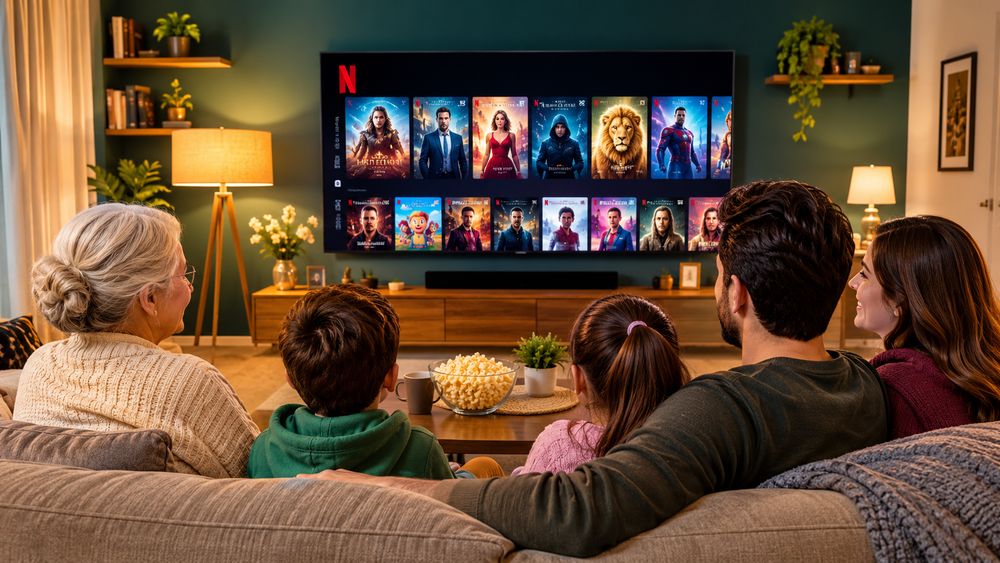
NetMirror uses the same app, but your phone screen is replaced with a TV screen. You use the remote to choose the movie and play it. You can watch in HD or 4K with a great screen and sound quality.
So yes, NetMirror is available for these TVs, but you will not find it in an app store. You have to install the APK file by hand with the Downloader app, a browser, or a USB drive.
Which TVs Can Run NetMirror?
NetMirror is an Android app, so it works best on TVs and devices that run Android. Samsung and LG TVs use their own systems, so they need a different method, which we will cover below.
Android TV and Google TV
Most TVs from Sony, Xiaomi, TCL, Hisense, and Philips run Android TV or Google TV. You can install the APK on them with the Downloader app, a browser, or a USB drive.
Firestick and Fire TV
Firestick also works because it is built on Android. You can install NetMirror on it with the Downloader app. See our main guide on how to install and use NetMirror for Firestick for more details.
Samsung and LG TVs
You cannot install the APK directly on Samsung or LG TVs. To watch NetMirror on them, you can cast it from your phone or plug in a Firestick or an Android TV box. We will cover these methods below.
Before you download anything, check which system your TV uses. You can find it in your TV settings under About. There is no separate TV version — use the same NetMirror v3.1 APK file as on a phone.
Before You Start
Before you install the app, keep these things ready:
- An Android TV, Google TV, or Firestick. Check your TV settings under About to confirm.
- A good Wi-Fi connection (or a LAN cable if possible).
- Your TV remote to enter text and select options.
- Enough storage space to install a new app.
- Enough storage space to download and install the NetMirror APK file.
- Your phone or computer to download the NetMirror APK file.
- A USB drive if you want to install it from USB.
Always download the APK from a trusted source. A fake file can cause problems for your TV and your data.
How to Install NetMirror on Android TV
There are three easy ways to install NetMirror on your Android TV. The Downloader app is the simplest method. The browser method also works if your TV has one. The USB method is a good choice if your TV has no browser or the internet is weak on the TV.
Method 1: Use the Downloader App
- Go to the home screen of your Android TV.
- Open your Google Play Store.
- Search for the Downloader app and install it.
- Open Downloader and allow it to install unknown apps if asked.
- Enter the download link or the website address where the NetMirror APK is available. Enter the file name and tap on “Go”.
- Wait for the APK to download.
- Once it finishes, select Install.
- After installation, open NetMirror.
Method 2: Install With the TV Browser
If your TV has a browser, you can use it to get the APK.
- Open the browser on your Android TV.
- Go to a page that has the NetMirror APK.
- Find the download link for the APK.
- Download the APK to your TV.
- Open the APK file and tap Install.
- Allow Unknown Sources if the TV asks for permission.
- Open NetMirror after installation.
Some TVs do not have a browser or do not let you download files. If that happens, use Method 1 or Method 3.
Method 3: Install With a USB Drive
This is a good choice if your TV has no browser or the internet is weak on the TV.
- On your phone or computer, download the NetMirror APK from our page.
- Copy the file to a USB drive.
- Plug the USB drive into the USB port of your TV.
- Install a file manager app on the TV from the Play Store if you do not have one.
- Open the file manager and find your USB drive.
- Select the NetMirror APK and click Install.
- Allow the permission if the TV asks, then click Open when it is done.
How to Turn On Unknown Sources
NetMirror is not in the Play Store, so your TV needs your permission first.
- Go to Settings, then Device Preferences, then Security and Restrictions.
- Click Unknown Sources and turn it on for the app you are using, like Downloader.
The names can be different on some TVs. Use the search option in Settings and type “unknown” if you cannot find it.
How to Open and Use NetMirror on Your TV
After the install, you can start watching in a few minutes.
- Open the Apps row on your TV home screen and click NetMirror.
- Use the arrow buttons on your remote to move around and press OK to select.
- Search or browse for a movie or show.
- Pick a title and play it.
If the video keeps stopping, choose a lower quality or use a LAN cable.
Quick tips for a better experience
- Use the search bar and start typing the title you want.
- Connect your TV with a LAN cable for a more stable internet connection, especially for HD and 4K videos.
- Change the video resolution from Settings if the quality does not look clear.
- If the app crashes, clear the cache from Settings, then Apps, then NetMirror, or install the app again.
Why Use NetMirror on Android TV?
Big Screen Viewing
Watch movies, shows, and web series in full screen on Android TV, Google TV, and Firestick.
Remote Control Friendly
You can move around the app and play videos using only your TV remote.
Easy Search
Type the name of a movie, show, or actor and find it quickly.
Free to Use
You do not need to pay for a subscription or sign up for an account.
Video Quality Options
Choose a quality that fits your internet speed, up to HD and 4K when the title supports it.
Subtitles and Audio Languages
Pick your favorite language for subtitles and audio, if the title has it.
Simple Layout
Popular, new, and trending titles are shown on the home page, so you can find something to watch right away.
NetMirror TV vs Mobile: Which Is Better?
Both ways work well, but they suit different moments. A phone is best when you are on the move. A TV is best when you want to watch with family.
| Feature | TV | Mobile |
|---|---|---|
| Screen | Large TV screen | Small phone screen |
| Controls | Use remote | Touch screen |
| Speakers | TV speakers or soundbar | Phone speakers |
| Watching | Good for groups | Good for one person |
| Storage | Limited storage | More storage |
| Performance | Depends on TV and model | Depends on mobile and model |
| Ease of use | Best for home | Can be used anywhere |
| Installation | Install APK on TV | Install APK on mobile |
Why Can’t You Download NetMirror on Samsung and LG TVs?
Samsung and LG TVs do not run Android apps, so you cannot install the NetMirror APK on them directly. You can still watch NetMirror on these TVs with the two methods below.
Use a Firestick or Android TV Box
This is the best method. Plug a Firestick or an Android TV box into the HDMI port of your TV. Then install and open NetMirror on it.
Cast From Your Phone
- Install NetMirror on your phone.
- Open it and find what you want to watch.
- Cast it to your TV.
- Use Wi-Fi to see it on your TV.
Casting is quick, but it can lag a little and your phone must stay on while you watch. A Firestick gives you a smoother experience.
Is NetMirror Safe to Use on Android TV?
NetMirror is not in the Play Store, so you install it from an APK file. The app itself is not the main risk. The risk is a fake or old file from a random website. To stay safe, download only from a source you trust, always install the latest version, and turn off Unknown Sources again after the install. Also check the rules in your country before using any third-party app.
Why NetMirror Is Not Working on Android TV and How to Fix It
App Is Not Installing
- The app file may be old or broken.
- Your TV may not have enough space.
- Your TV may not allow the Downloader app to install APK files.
- Download the latest NetMirror APK from a trusted source and check the Unknown Sources permission.
App Is Not Showing on the Home Screen
- Open your App Drawer and look for NetMirror.
- Restart your TV.
- Install a Sideload Launcher to make the app easier to find.
Sideload Launcher shows apps that do not appear on your home screen.
Buffering and Slow Videos
- Check your internet connection and restart your router if needed.
- Use a LAN cable instead of Wi-Fi for a stable connection.
- Choose a lower video quality.
- Close other apps running in the background.
App Is Not Working or Crashing
- Restart your TV.
- Clear the app cache from Settings, then Apps, then NetMirror.
- Install the latest version of NetMirror.
- If it still does not work, install the APK again.
Pros and Cons of NetMirror on TV
Pros
- Big-screen streaming
- Free to use
- Works with a remote
- Supports HD and 4K
- Subtitles and other languages
Cons
- Not on the Play Store
- Does not work on Samsung TVs
- Some features may vary by title
- Needs a download before install
- No official support
NetMirror Android TV FAQs
Yes. Both run on Android, so you can install the APK with the Downloader app, the TV browser, or a USB drive.
Not directly, because these TVs do not run Android apps. You can plug in a Firestick or an Android TV box into the HDMI port.
No, it is just the easiest way. You can also use the TV browser or a USB drive.
Yes, if the TV does not run Android, plug a Firestick or an Android TV box into its HDMI port.
Mostly because of slow internet. Use a LAN cable, move closer to the router, or choose a lower video quality.
Yes. Use the arrow buttons to move and press OK to select. Some phone APK files may not work well with a remote.
Final Verdict
NetMirror is a good choice if you want to watch movies and shows on a big screen. Android TV, Google TV, and Firestick all support it, and the installation takes only a few minutes.
Before you install, check which system your TV uses and download the APK only from a source you trust.
Related Guides: NetMirror APK for PC