NetMirror for Firestick
Want to watch NetMirror on a big screen with your Firestick? You can do it in a few minutes, and you do not need to be good with technology. In this guide, we will show you how to install NetMirror on any Firestick, how to use it, and how to fix it if it does not work.
Firestick runs on a system based on Android, so you can install the NetMirror APK with the free Downloader app. Follow the steps below, and your TV will be ready to stream.
What Is NetMirror on Firestick?
Firestick is a small device that plugs into the HDMI port of your TV. It turns any TV into a smart TV, so you can watch movies, shows, and web series on a big screen.
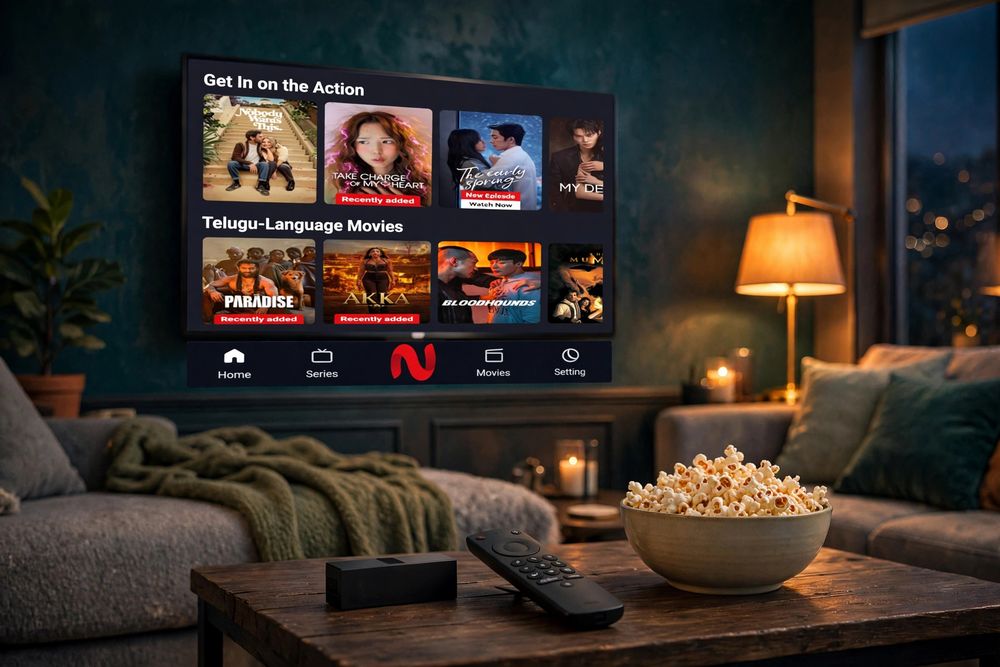
NetMirror is a free Android app for finding and watching movies and shows. It has a simple layout that works well on a TV and a remote.
On Firestick, NetMirror uses the same NetMirror APK file that you would use on an Android phone. It does not have its own version. It is the same app, made to work on a big screen.
Which Firestick Devices Can Run NetMirror?
Most Fire TV devices can run NetMirror, because they all use Fire OS.
Fire TV Stick Lite and 4K
Both work well. The 4K model is faster and gives smoother playback, but the Lite model is fine for HD streaming.
Fire TV Cube
This is the fastest Fire TV device, so the app opens and loads quickly.
Fire TV Built-in TVs
Some TVs from Amazon, Insignia, and Toshiba have Fire TV inside them. You can install NetMirror on them the same way as on a Firestick.
Very old Firesticks may be slow or may not have enough storage, so a newer model is better.
What You Need Before You Start
- A Firestick or a TV with Fire TV built in.
- A WiFi connection.
- At least 200 MB of free storage.
- The free downloader app from the Amazon Appstore.
- The NetMirror APK from a website you trust.
How to Install NetMirror on Firestick
The whole process takes about five minutes. Follow the steps in order.
Step 1: Allow Apps From Unknown Sources
- Go to Settings, then My Fire TV, then Developer Options.
- Click Install Unknown Apps and turn it on for Downloader.
If you cannot see Developer Options, go to Settings, My Fire TV, About. Click your device name 7 times and go back. The menu will show up after that.
Step 2: Get the Downloader App
- Click Search on the home screen and type “Downloader”.
- Select the orange Downloader app and click Get.
Step 3: Download the NetMirror APK
- Click Search on the home screen and type “Downloader.”
- Open Downloader and click the URL box.
- Type the address of our website and click Go.
- Scroll down and click the green Download NetMirror APK button.
- Wait until the download finishes. The file is about 54 MB, so it may take a minute on slow WiFi.
Step 4: Install and Open the App
- When the download ends, the install screen will open. Click Install.
- Click Open to start NetMirror.
Step 5: Delete the APK to Save Space
Downloader will ask if you want to delete the file. Click Delete. This only removes the setup file, not the app.
How to Add NetMirror to Your Home Screen
Firestick can hide new apps at the end of the list. To move NetMirror to the front:
- Press and hold the Home button and select Apps.
- Highlight NetMirror and press the Menu button on your remote.
- Click Move to Front.
How to Use NetMirror With the Firestick Remote
- Open NetMirror from your Apps list.
- Use the arrow buttons to move around and press the center button to select.
- Use the search option to find a movie, show, or actor.
- Press the center button while a video is playing to change the quality or turn on subtitles.
If the video keeps stopping, choose a lower quality.
NetMirror Firestick Features
Big Screen Viewing
Watch movies and shows in full screen on your TV.
Remote Control Friendly
Move around the app and play videos using only your Firestick remote.
Easy to Set Up
The Firestick plugs into your TV, so you do not need any other device or cable box.
Free to Use
There is no subscription fee, and you do not need to make an account.
Large Library
Find movies, TV shows, and web series in one place.
Subtitles and Audio Languages
Choose your language for subtitles and audio, if the title has them.
Quality Options
Pick a video quality that matches your internet speed.
Is NetMirror Safe on Firestick?
NetMirror is not in the Amazon Appstore, so you install it from an APK file. The app is not the main risk. The risk is a fake or old file from a random website. Download only from a source you trust, always use the latest version, and turn off Unknown Apps for Downloader after the install. Also check the rules in your country before using any third-party app.
Fix Common NetMirror Firestick Problems
App Not Installing
- Make sure Install Unknown Apps is turned on for Downloader.
- Download the APK again, because the file may be broken.
- If you already have an old version, remove it first and then install the new one.
- Restart your Firestick and try again.
Storage Full Error
Firestick has very little storage, so it fills up fast.
- Go to Settings, then Applications, then Manage Installed Applications.
- Open apps you do not use and click Uninstall.
- Clear the cache of other apps, then try the install again.
- Delete the APK file after the install to save space.
Buffering or Slow Playback
- Move your Firestick closer to the WiFi router.
- Choose a lower video quality.
- Close other apps and restart your Firestick.
- Pause the video for a minute so it can load more.
App Keeps Closing
- Restart your Firestick and open the app again.
- Go to Settings, then Applications, then Manage Installed Applications, then NetMirror, and click Clear Cache.
- Update to the latest APK from a trusted site.
- If it still closes, remove the app and install it again.
NetMirror Firestick Pros and Cons
Pros
- Turns any TV with an HDMI port into a streaming TV.
- You do not need a TV box. The stick is enough.
- Easy to use with the Firestick remote.
- Free to install and use, with no account needed.
- The setup takes only about five minutes.
Cons
- It is not in the Amazon Appstore, so you must install it by hand.
- The first setup has a few steps.
- Very old Firesticks can be slow.
- Updates are manual. You have to install each new version yourself.
FAQs
Yes. Firestick runs on a system based on Android, so you can install the NetMirror APK with the free Downloader app.
Yes. The APK is free, and the Downloader app is also free in the Amazon Appstore.
Go to Settings, My Fire TV, About. Click your device name 7 times and go back. The menu will show up.
It is the easiest way, so we suggest it. It is free and simple to use.
Most of the time, the permission for Downloader is off, the storage is full, or the download did not finish. Check the fixes in the problems section above.
The app does not update by itself. Download the new APK with Downloader and install it. It will replace the old version.
Yes, the steps are the same. The Lite is a little slower than the 4K model, so choose a lower video quality if the video stops.
Final Verdict
Firestick is one of the easiest ways to watch NetMirror on your TV. You only need to set it up once, and it takes about five minutes. After that, the app will be in your Apps list like any other streaming app.
If you have a Samsung or LG TV, you can plug in a Firestick and use it the same way. For other devices, you can also check our Smart TV guide, our homepage, or the old versions page if a different version works better for you.
Related Guides: NetMirror APK for PC